How-To Guides · Tech help
How to Bookmark a Website in Chrome (and Find It Again)
Found a website you want to come back to? Save it as a bookmark in Chrome, and it's one click away next time. Here's how, on a computer.
1. Step 1: Click The Star
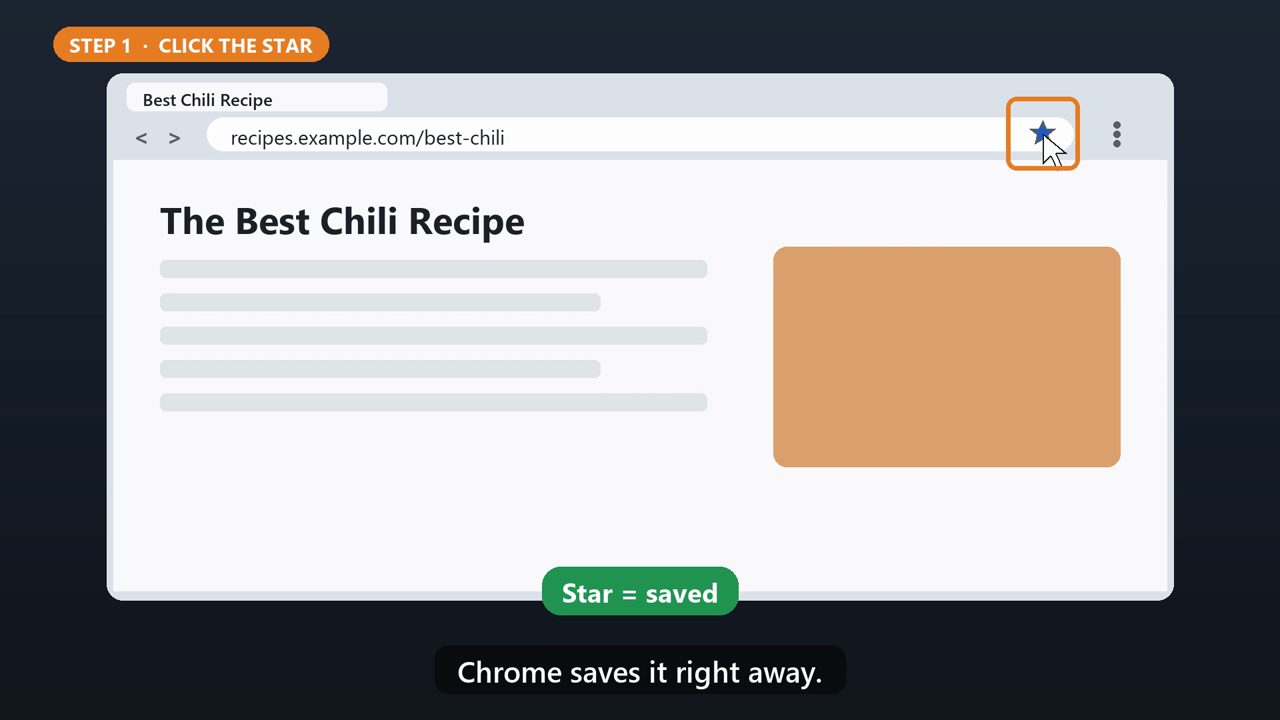
Go to the page you want to save. On the right end of the address bar, click the star. Chrome saves it right away.
2. Step 2: Name It (Optional)
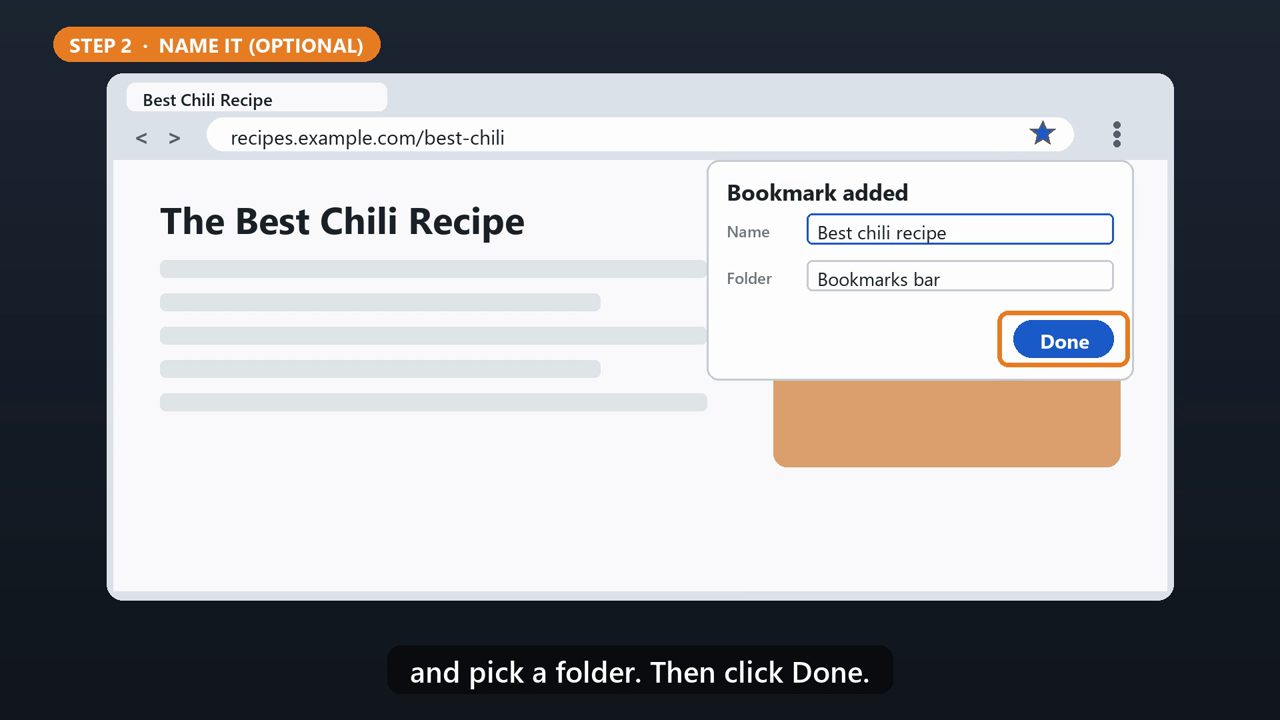
A small box pops up. You can change the name, and pick a folder. Then click Done.
3. Shortcut
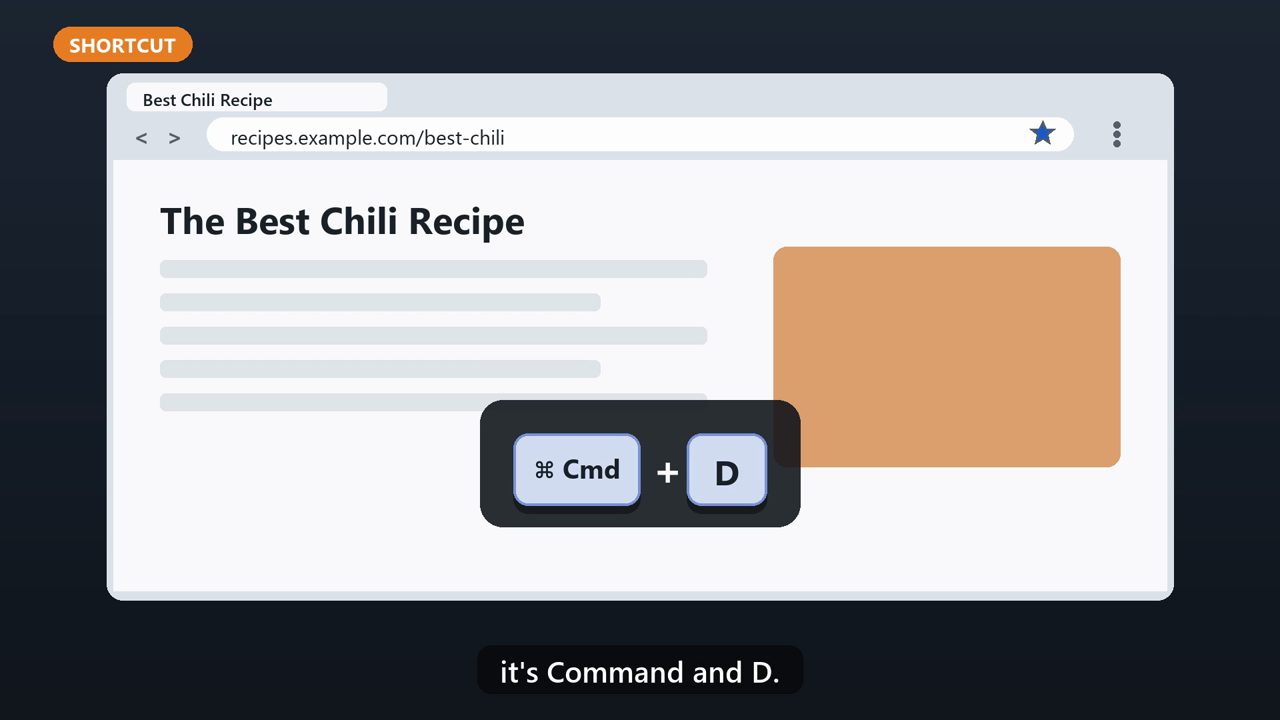
Faster way: press Control and D together. On a Mac, it's Command and D.
4. Step 3: Show The Bookmarks Bar
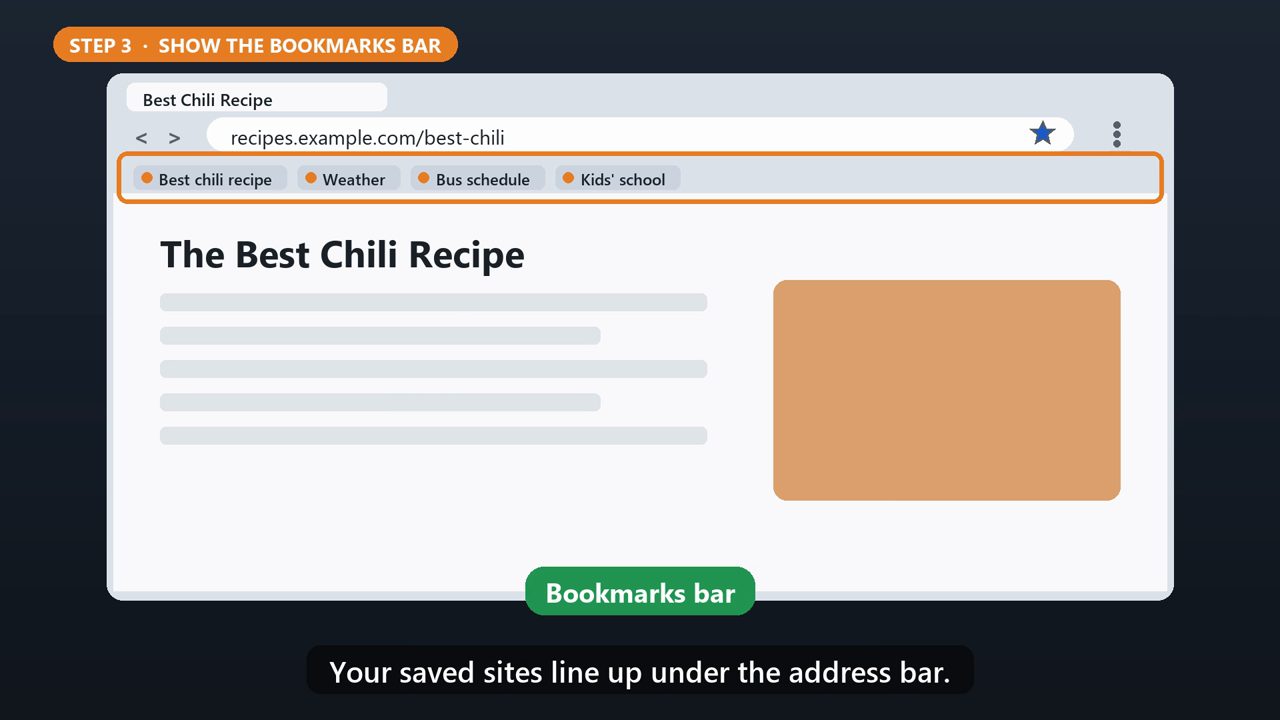
To keep your bookmarks in view, turn on the bookmarks bar. Press Control, Shift, and B. On a Mac, Command, Shift, and B. Your saved sites line up under the address bar.
5. Find One Fast
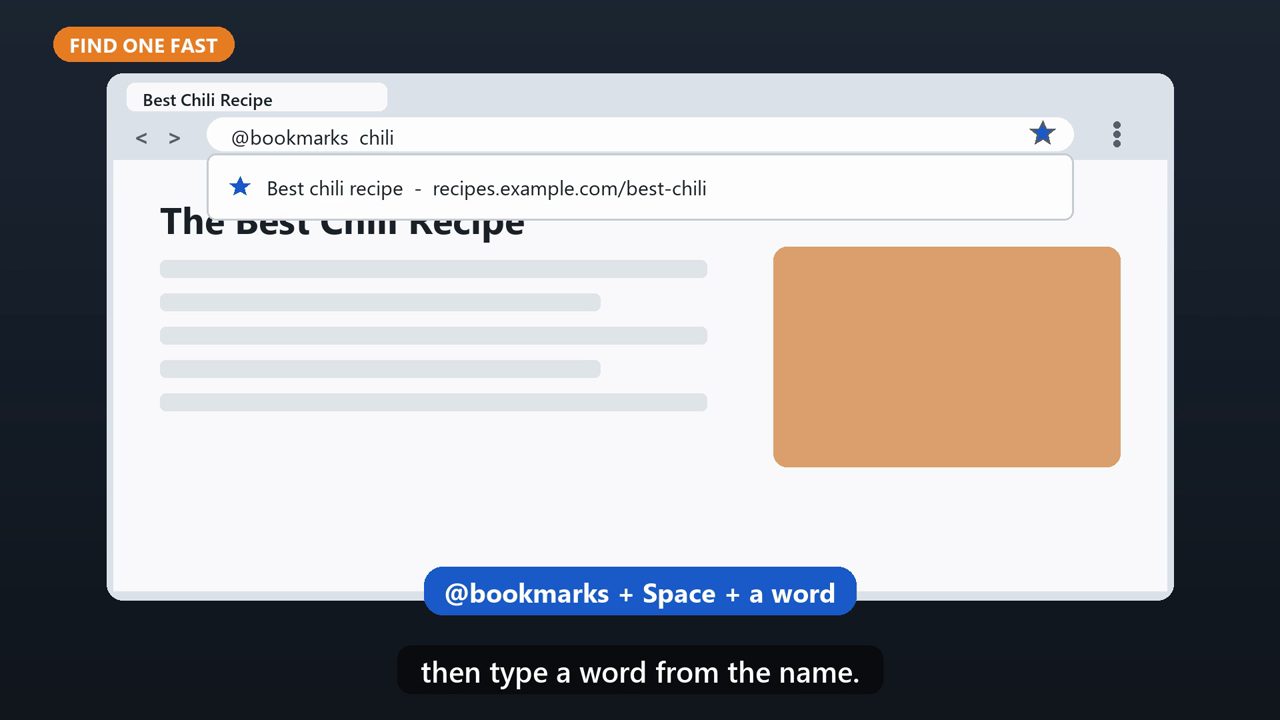
Have a lot of them? Type at bookmarks in the address bar, press space, then type a word from the name.
6. Edit Or Delete
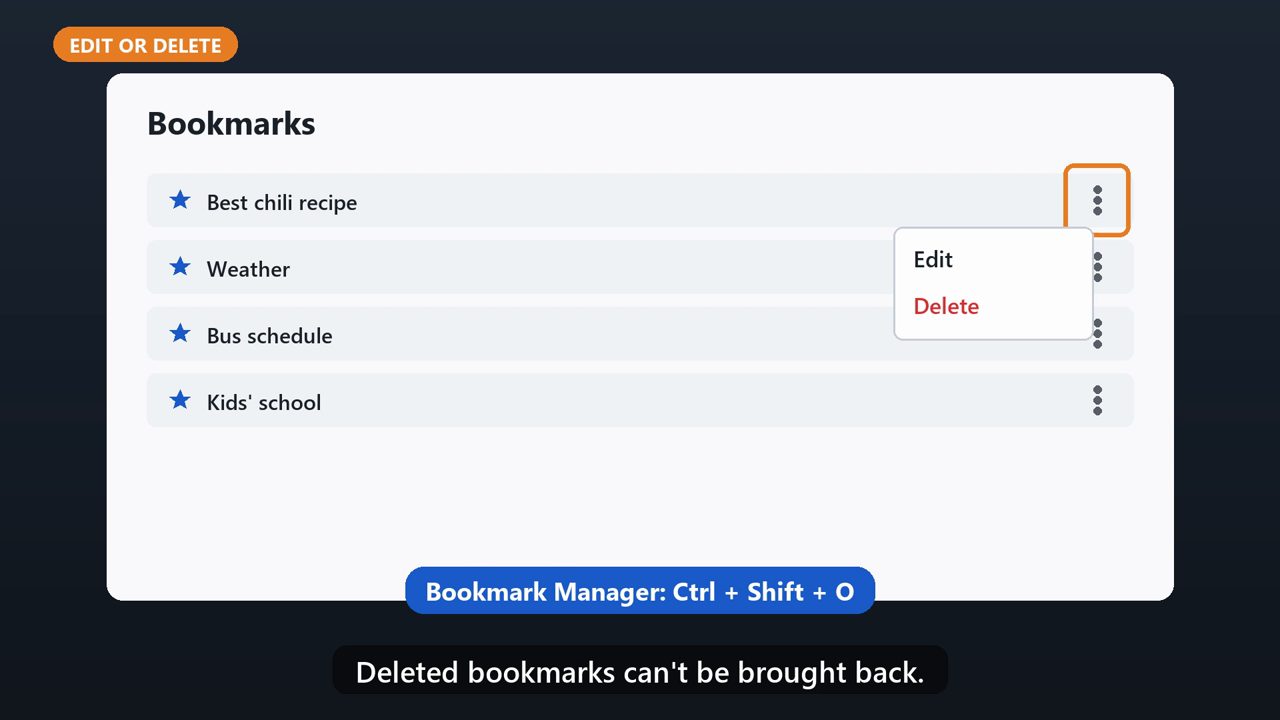
To rename or delete one, open the Bookmark Manager with Control, Shift, and O. Click the three dots next to a bookmark, and choose Edit or Delete. Deleted bookmarks can't be brought back.
Tools that make this easier
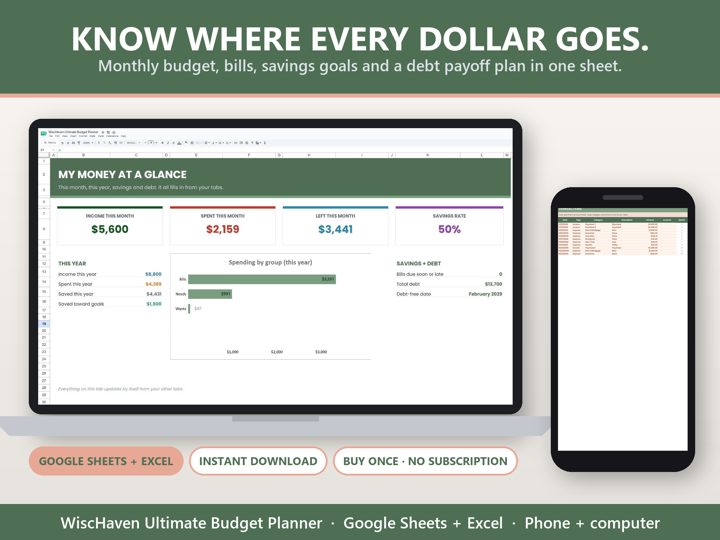
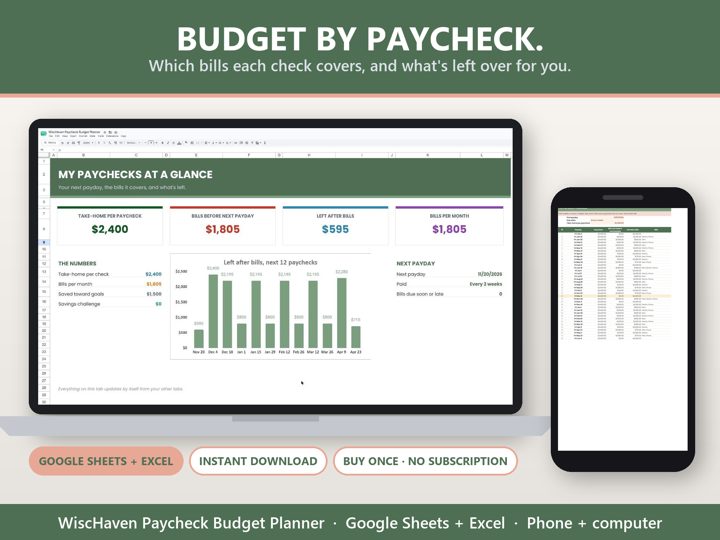
Simple Google Sheets + Excel tools from WiscHaven. Buy once, no subscription.
Sources
Checked against the official sources above. Steps can change as apps update - tell us if something looks different: wischavenindustries@gmail.com