How-To Guides · Money
How to Make a Monthly Budget in Google Sheets (Easy Template)
Want to know exactly where your money goes every month? A simple budget in Google Sheets can do it, with a little setup and just a few minutes a week after that. Here's the method, step by step.
1. Step 1: Your Income
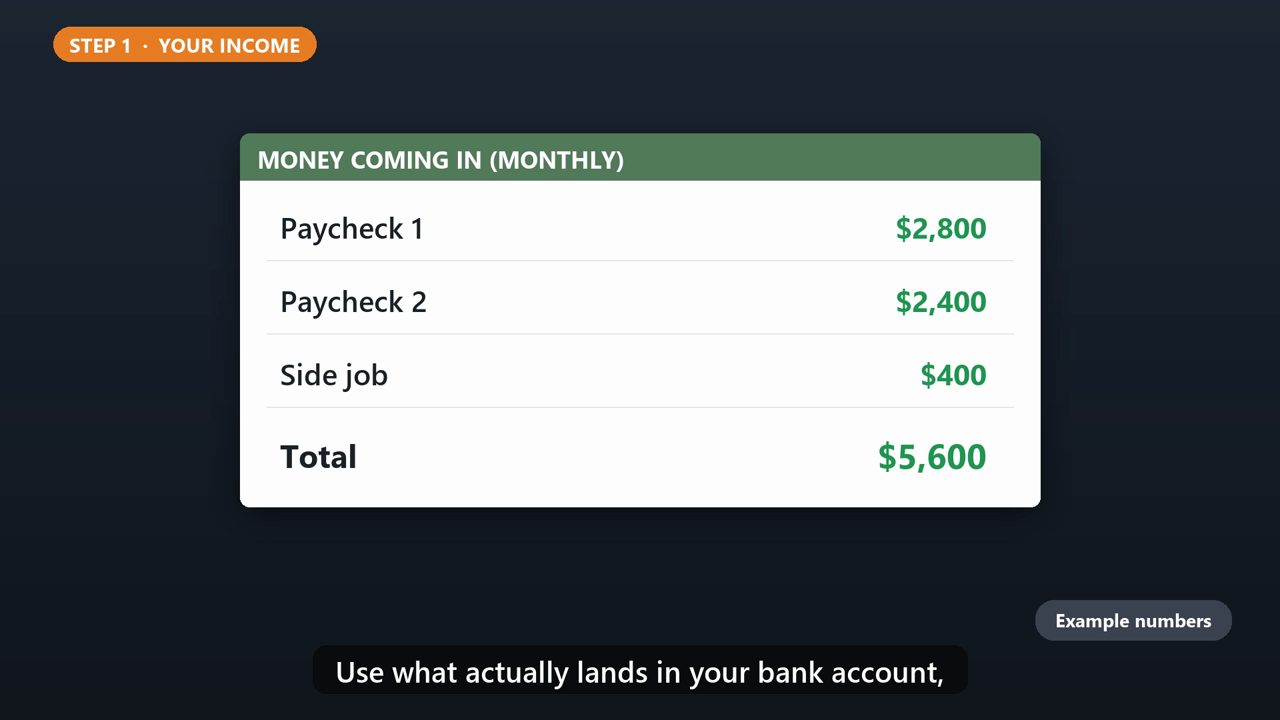
Step one. Write down the money coming in each month. Your paychecks, side jobs, anything regular. Use what actually lands in your bank account, after taxes.
2. Step 2: Your Categories
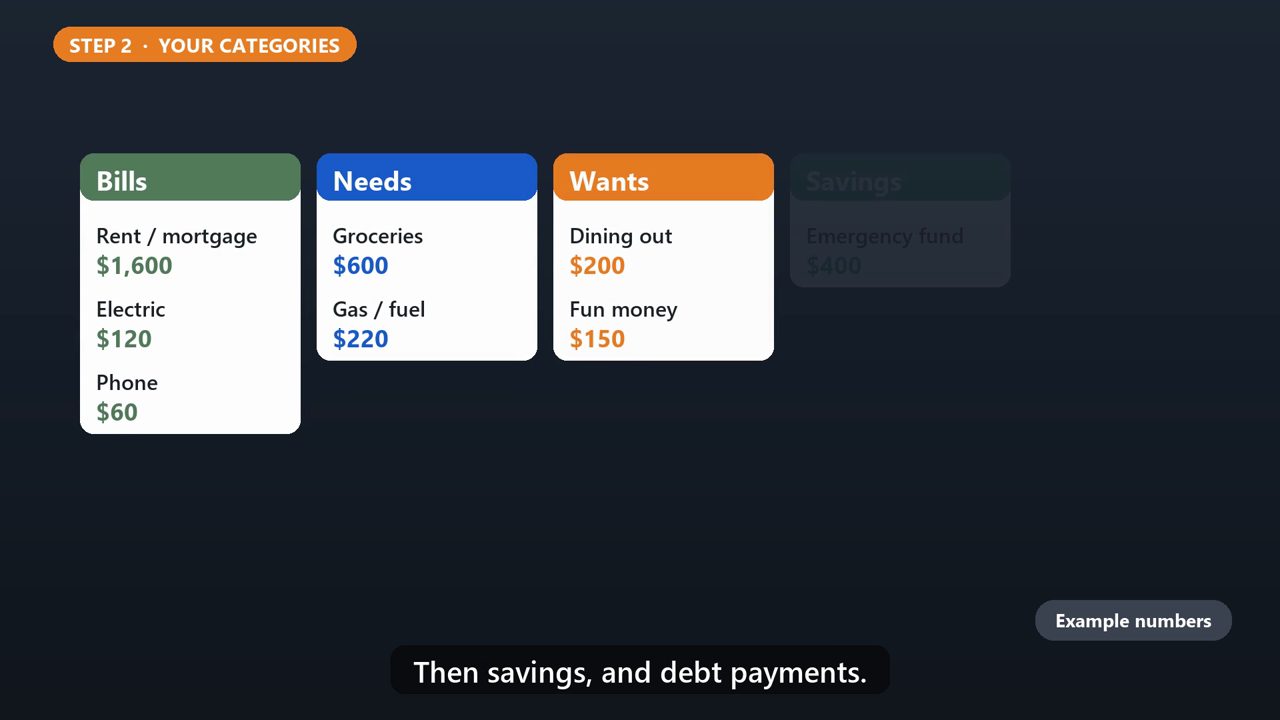
Step two. List where your money goes, and set a monthly amount for each. It helps to group them. Bills, like rent and utilities. Needs, like groceries and gas. Wants, like eating out. Then savings, and debt payments.
3. Step 3: Give Every Dollar A Job
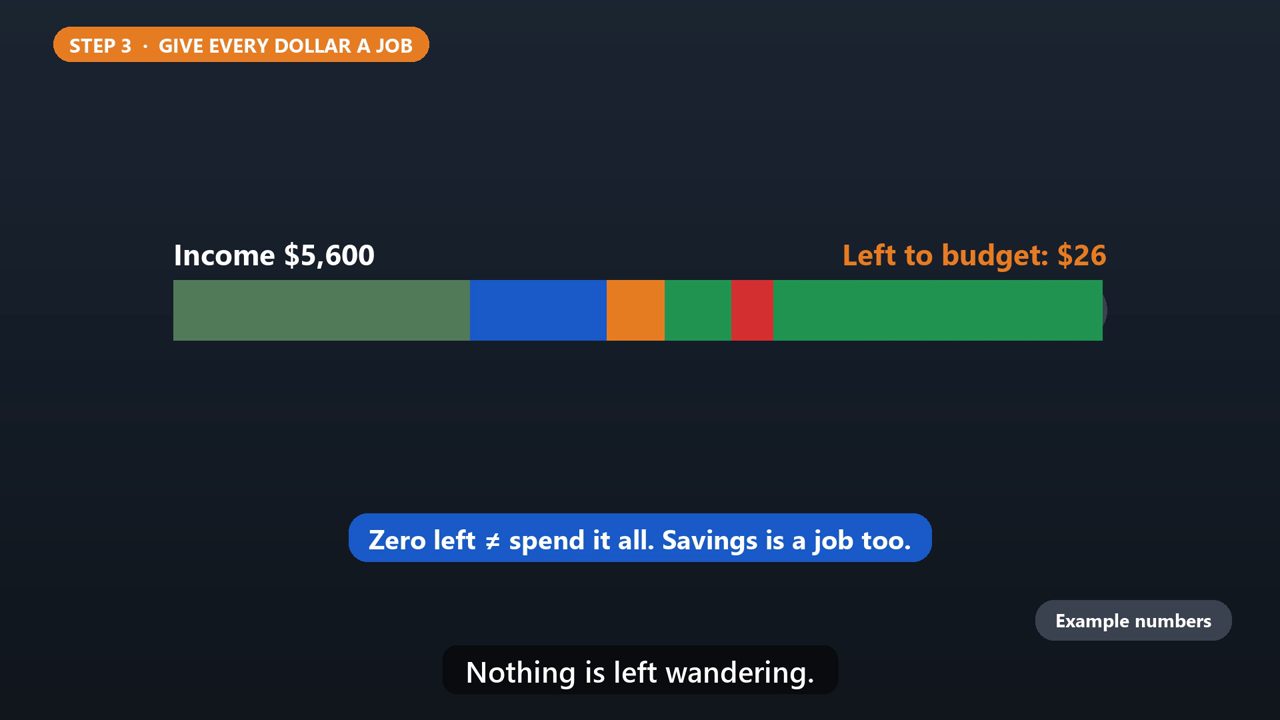
Step three. Keep adjusting until your income minus your budgets equals zero. That doesn't mean spending everything. It means every dollar has a job, including savings. Nothing is left wandering.
4. Step 4: Track What You Spend
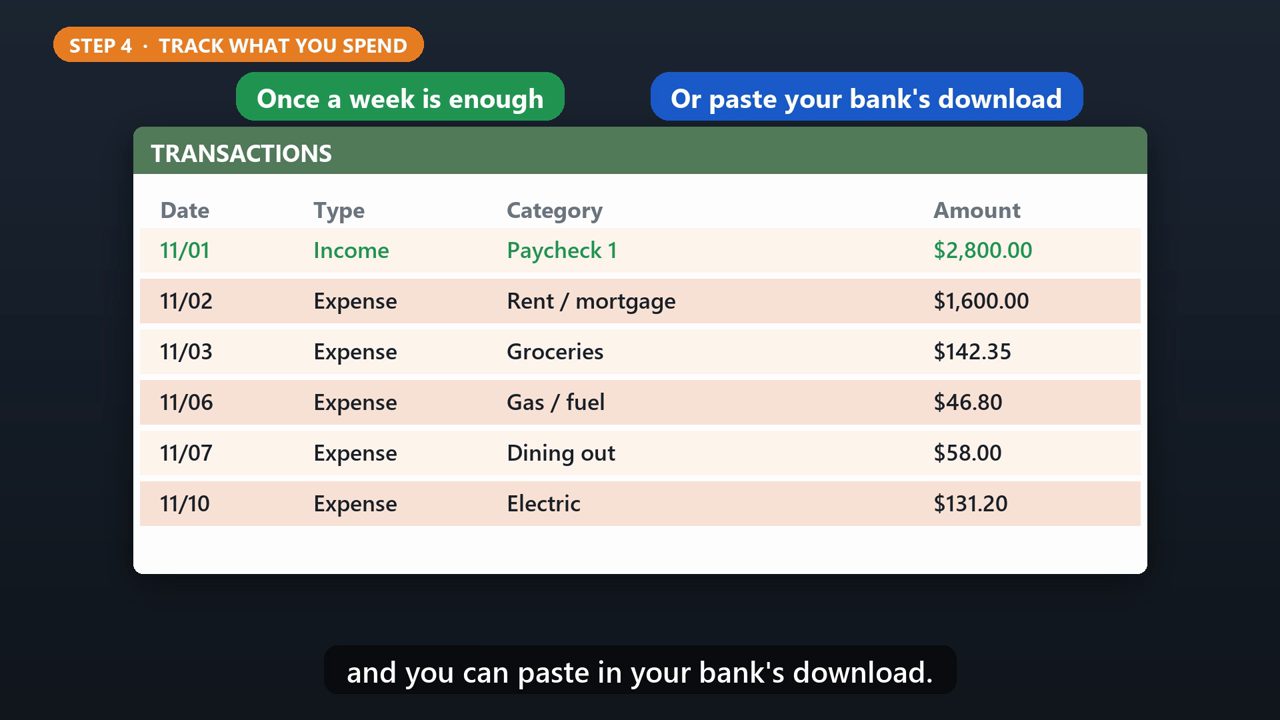
Step four. Log what you actually spend. The date, whether it's income or an expense, the category, and the amount. You don't have to do it daily. Once a week is enough, and you can paste in your bank's download.
5. Step 5: Compare And Adjust
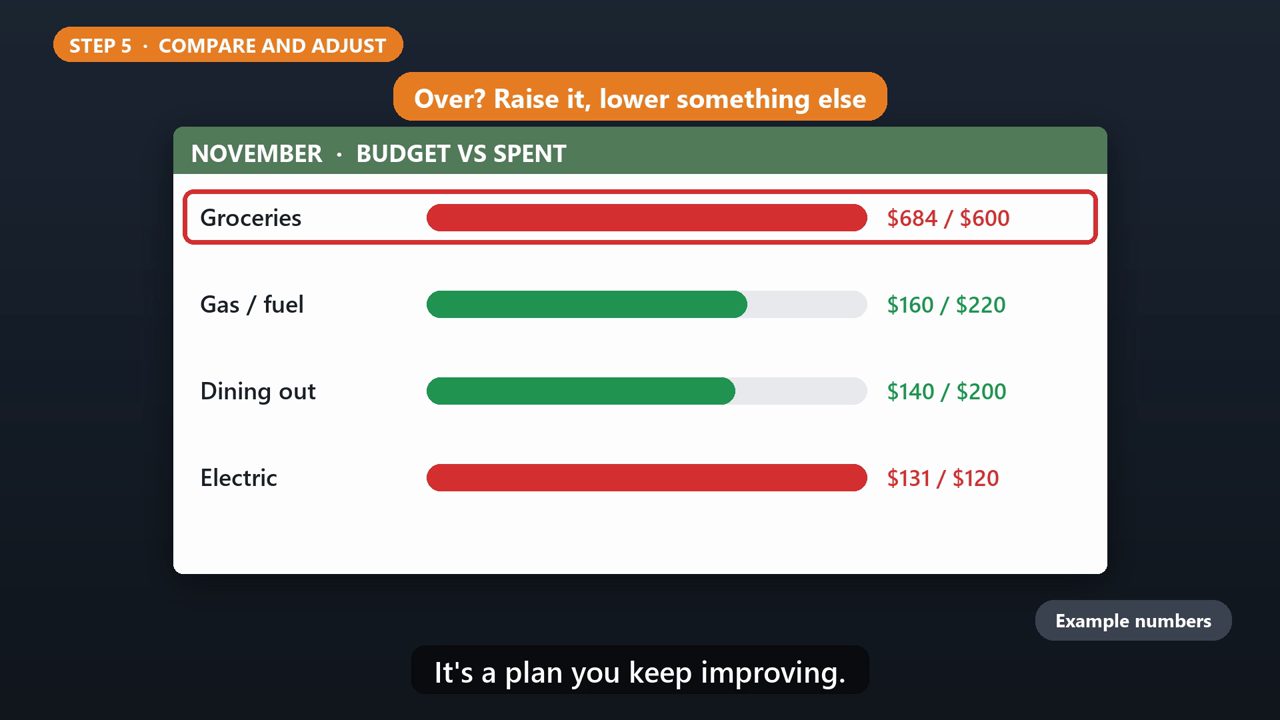
Step five. Each month, compare what you planned to what you actually spent. If groceries keep going over, raise that budget and lower something else. A budget isn't a punishment. It's a plan you keep improving.
6. The Easy Way
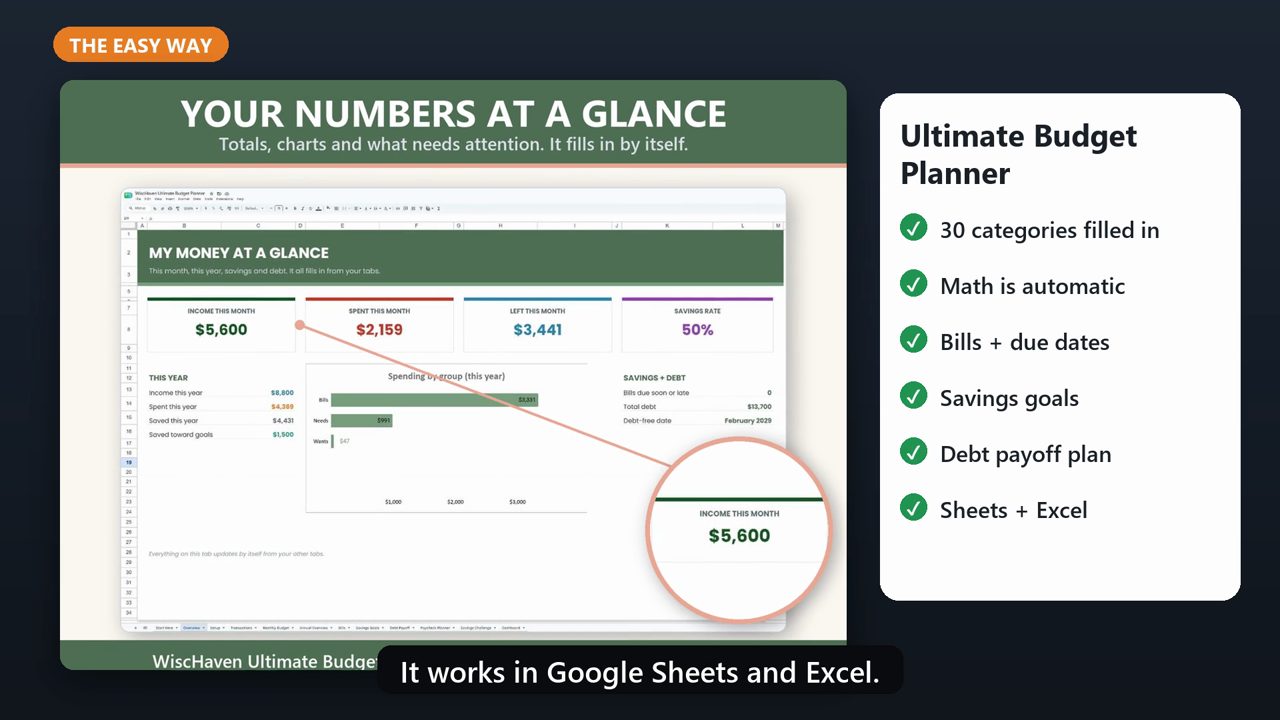
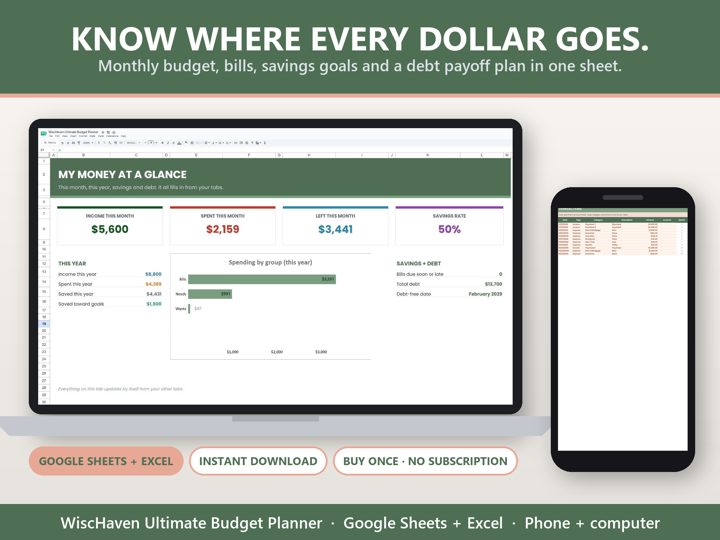
You can build this yourself in a blank sheet. Or use our Ultimate Budget Planner, which has all of this ready to go. Thirty common categories are already filled in, the math happens automatically, and it adds bills, savings goals, and a debt payoff plan. It works in Google Sheets and Excel. The link is in the description.
Tools that make this easier
Simple Google Sheets + Excel tools from WiscHaven. Buy once, no subscription.
Checked against the official sources above. Steps can change as apps update - tell us if something looks different: wischavenindustries@gmail.com