How-To Guides · Tech help
How to Restart Your Modem and Router (Fix Slow Wi-Fi)
Internet slow, or not working at all? Before you call anyone, try restarting your modem and router the right way. It fixes a surprising number of problems, and the order matters.
1. Modem Vs Router
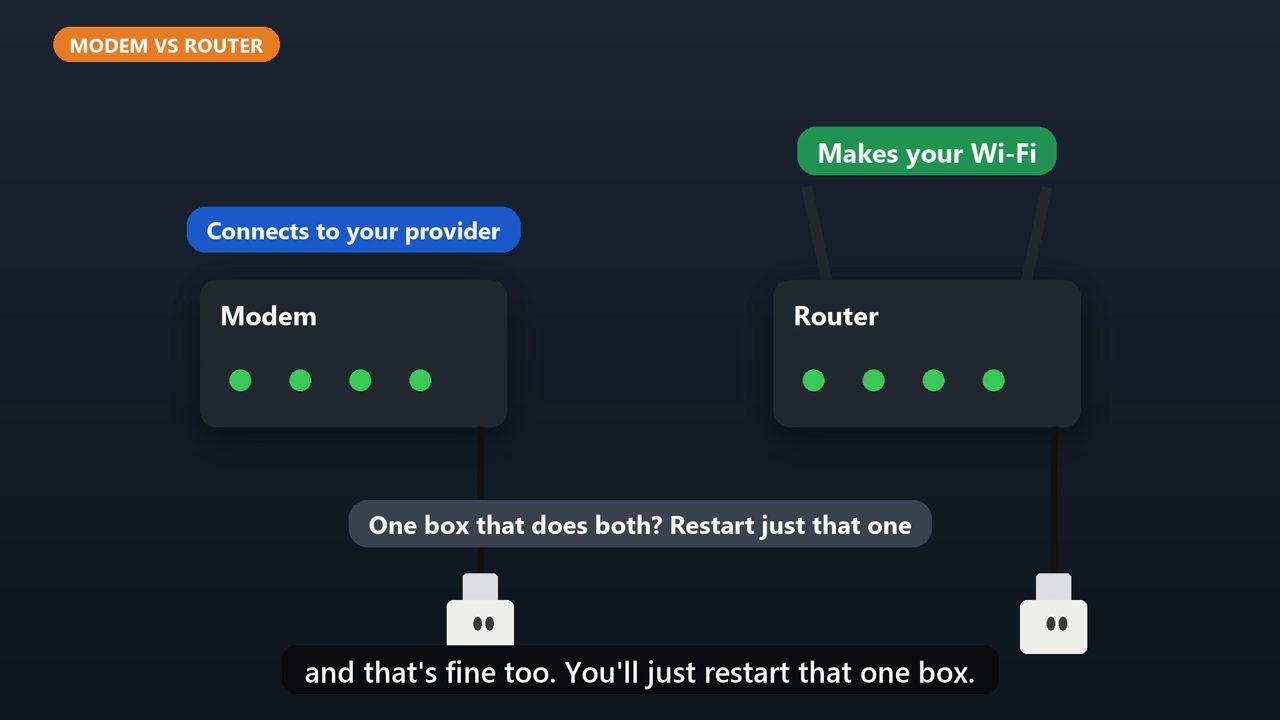
First, know your boxes. The modem connects your home to your internet provider. The router makes your Wi-Fi. Some homes have one box that does both, and that's fine too. You'll just restart that one box.
2. Step 1: Note The Lights
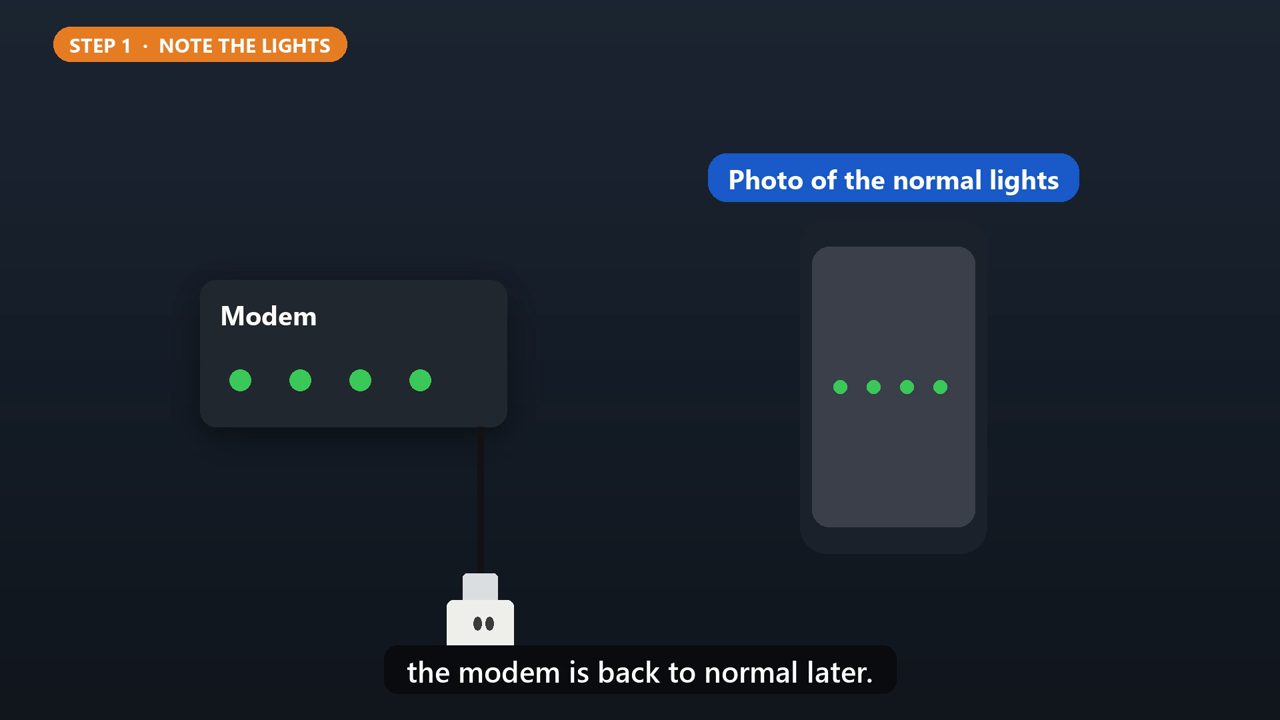
Step one. If you can, snap a quick photo of the lights while things are working normally. It makes it easier to tell when the modem is back to normal later.
3. Step 2: Unplug Everything
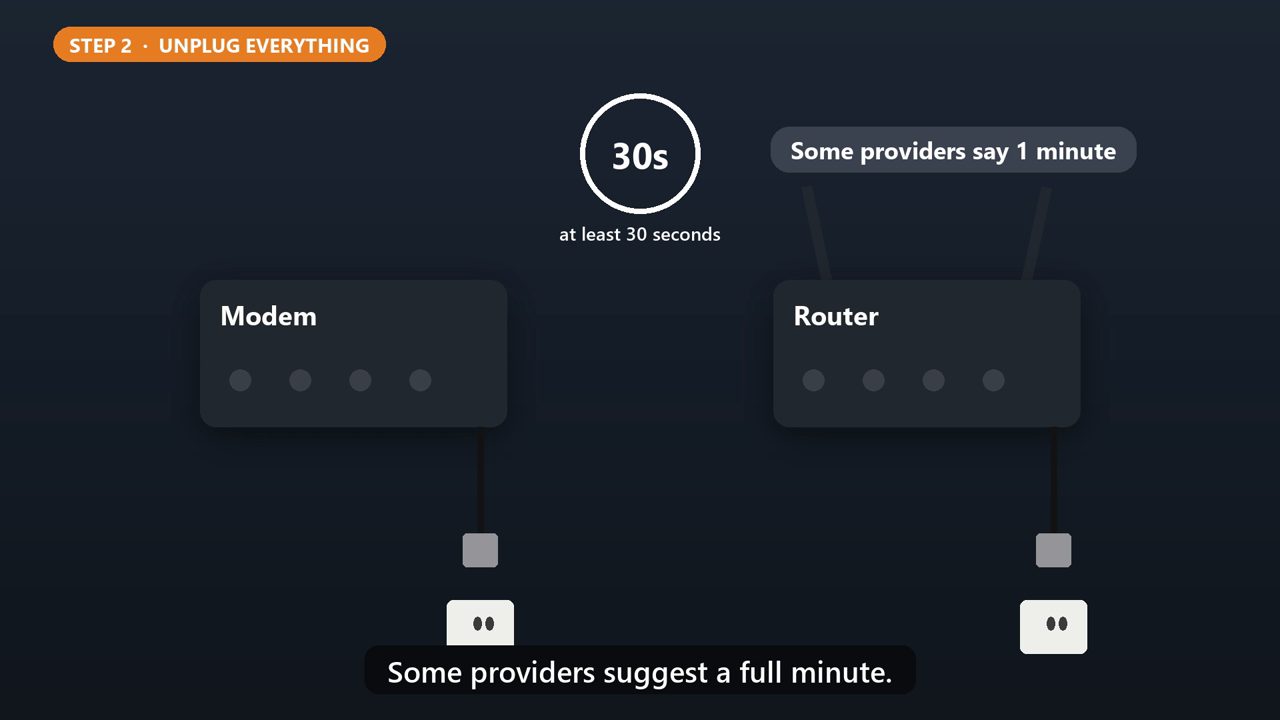
Step two. Unplug the power cord from the modem, the router, and any Wi-Fi extenders. Wait at least thirty seconds. Some providers suggest a full minute.
4. Step 3: Modem First
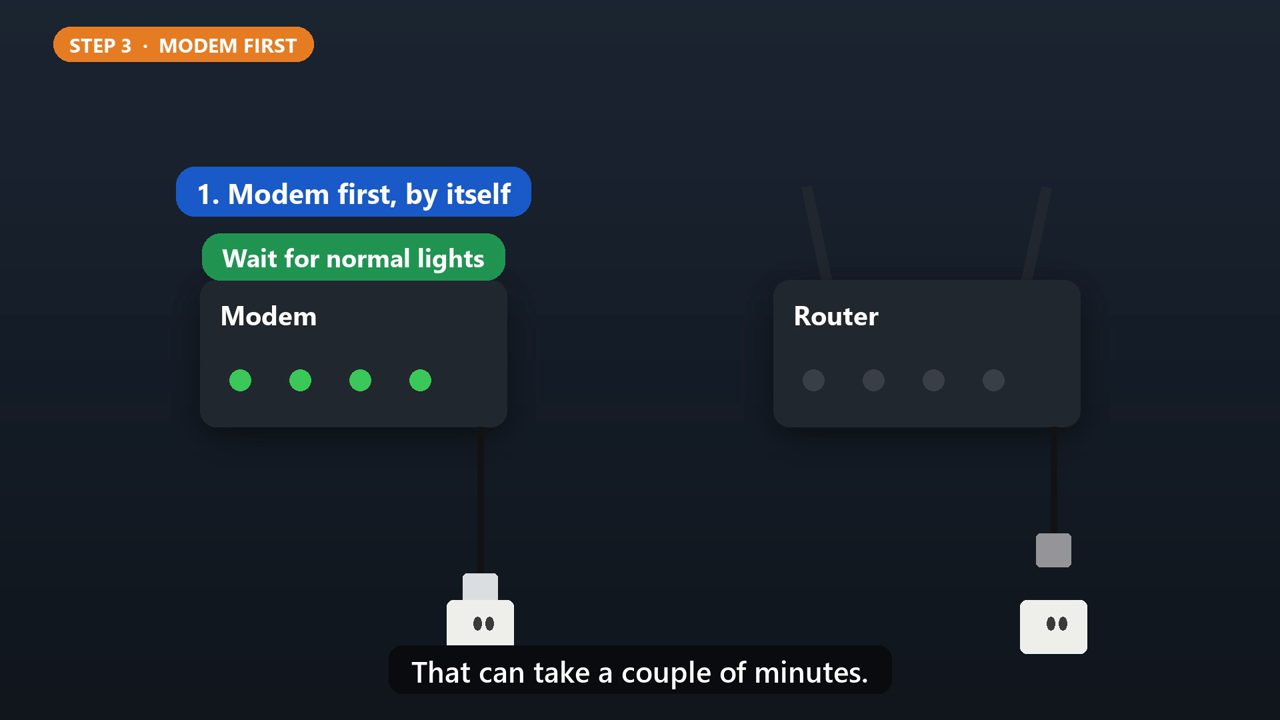
Step three. Plug in the modem first, by itself. Wait until its lights look normal again. That can take a couple of minutes.
5. Step 4: Then The Router
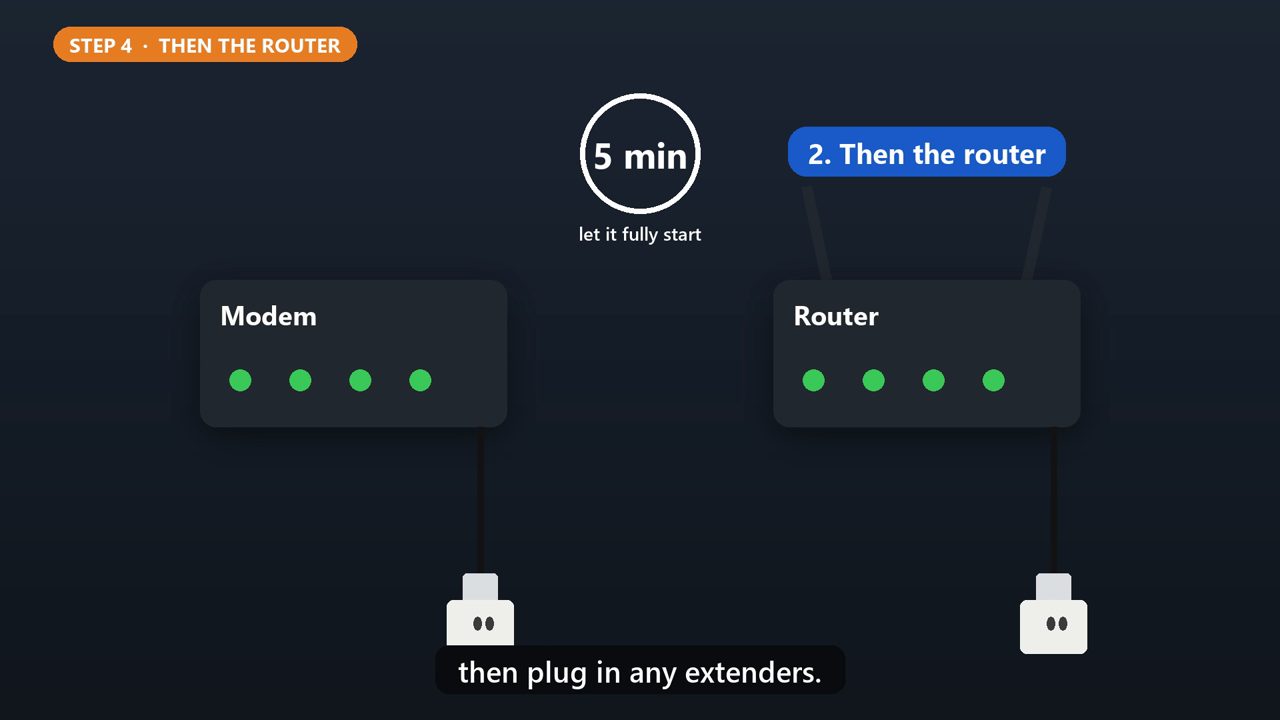
Step four. Now plug in the router. Give it about five minutes to fully start up, then plug in any extenders.
6. Don'T Press Reset
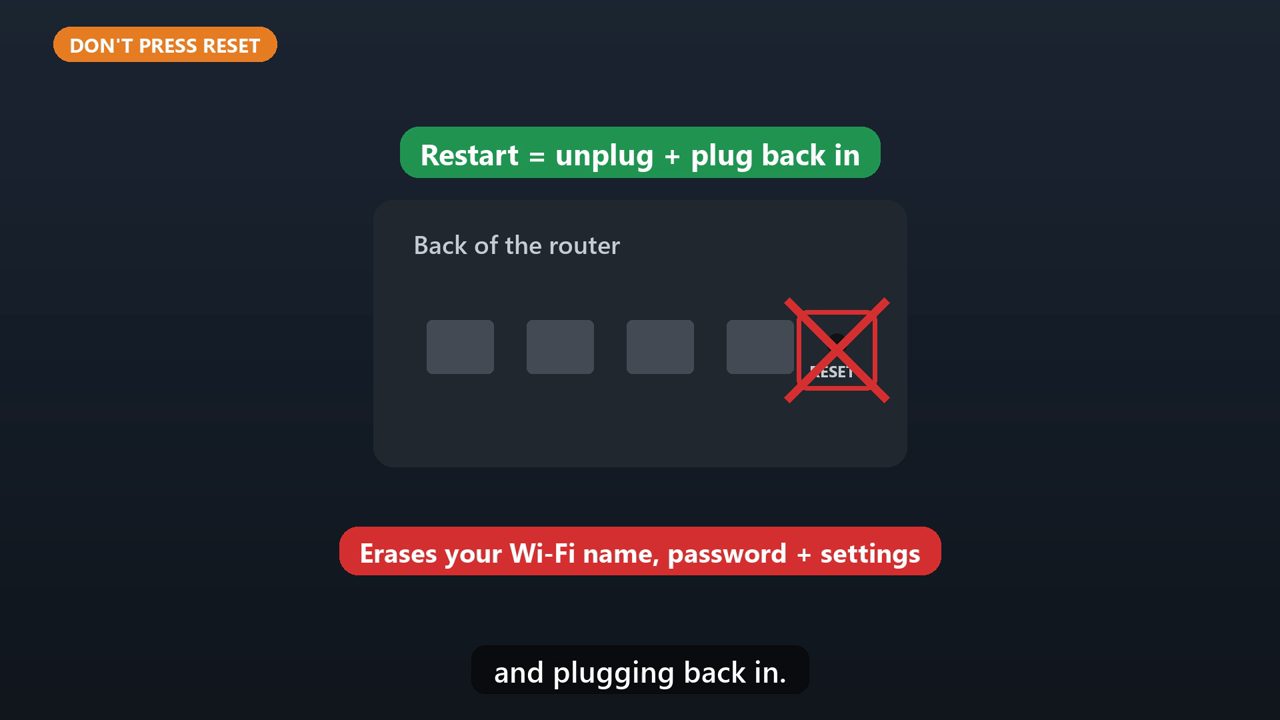
One warning. Don't press the tiny Reset button in the pinhole. Holding it erases your Wi-Fi name, password, and settings. Restarting is just unplugging and plugging back in.
7. Still Not Working?
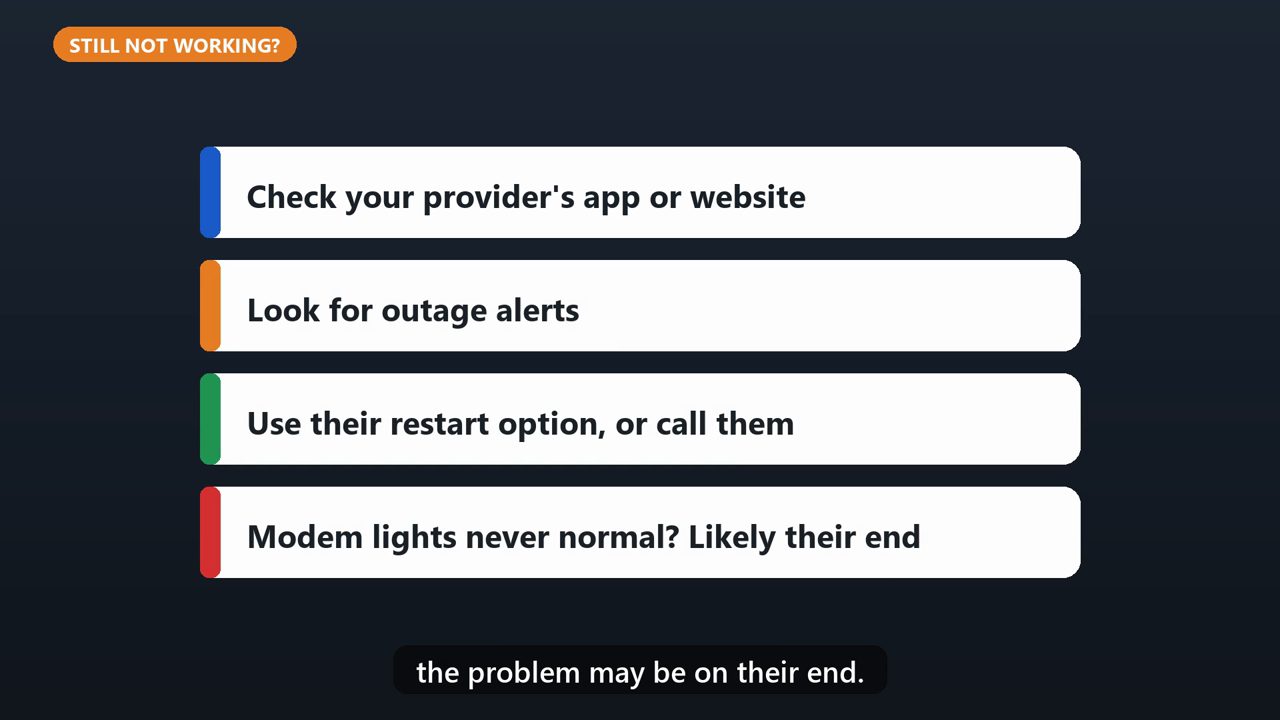
Still having trouble? Check your provider's app or website for outage alerts and a restart option, or give them a call. If the modem's lights never come back to normal, the problem may be on their end.
Tools that make this easier
Simple Google Sheets + Excel tools from WiscHaven. Buy once, no subscription.




Sources
Checked against the official sources above. Steps can change as apps update - tell us if something looks different: wischavenindustries@gmail.com